
Guide
Manual
How to get the tracker working, and what the map is actually telling you. Written to be read once, the evening before you first take it out. If you only need one thing, jump straight to it. It describes the app from version 2.0 on.
01
What you need
Three things. That is the whole list.
- The tracker on the collar — IK122T, IK122T Pro, IK122M Pro or the older IK122 Pro.
- A SIM card that goes into the tracker. Any carrier, the cheapest plan they sell. The tracker sends tiny packets, it is not streaming video. But two things must be right, or the tracker will never report: the card needs mobile data (calls and SMS alone are not enough) and the PIN must be disabled. The tracker has no keypad to enter one. Turn the PIN off by putting the card in a phone first (Settings → Security → SIM lock), then move it to the tracker.
- An Android phone with the DogTracker app. The iPhone version is coming soon.
The tracker does not talk to your phone directly. It reports its position over its own SIM to our server, and the app reads it from there. So both of you need signal — if you are the one standing in a dead spot, your map sits still until you climb out of it.
02
Setting up and pairing the tracker
Do this at home, unhurried, the day before you go out. Not at five in the morning in a car park.
- Create an account. Name, email, a password of at least 8 characters. A confirmation link arrives by email — click it right away while you are still at the phone.
- Allow notifications and location. After a short guide the app asks for one, then the other. Without notifications you will not hear that the tracker battery is running low, and without your phone's location there is no distance to the dog, no "Guide me" and no My trail.
- Enter your own phone number as the Admin/SOS number. It is optional, but do it now. It applies to every tracker you own, and each new one picks it up on its own as soon as it pairs.
- Test the card in your phone before it goes into the tracker. Put it in, open any page to confirm data works, then disable the PIN. Two minutes here save an hour of guessing later — a tracker that "will not report" has a locked card or a card without data nine times out of ten.
- Put the SIM card in the tracker and switch it on. Leave it outside with a clear view of the sky — indoors it can hunt for satellites for a long while.
- Open Trackers → Add tracker, type in the tracker ID number and choose the model. The ID number is the 11 digits marked ID on the tracker itself — not the SIM number, and not the other, 15-digit number on the label. If the number you are looking at has 15 digits, it is the wrong one: no part of it is the ID number, and the app will not accept it. Pick the wrong model and the server corrects it on its own (section 19).
- Add the number of the SIM card inside the tracker too. Not required, but if you fill it in, the next steps are one tap each instead of copying a number across by hand.
- Send the prepared SMS. The app writes the message for you —
you just send it to the SIM number in the tracker. Nothing to type, nothing to edit in
the text. Within a minute the tracker replies with
SL DP:a.dogtracker.app,7700— its confirmation that it has taken our server's address. - Restart the tracker. The app has a button for it in the same
step: it sends the tracker an SMS with the text
SL RT, and the tracker replies "The terminal will restart after 1 minute!". You can also do it by hand — hold the button on the tracker for 5 seconds to switch it off, then again to switch it on. - Wait a minute or two after the restart. The tracker reports to our server and attaches itself to your account — the entry disappears from "Pending requests". The request stays valid for 24 hours from the moment you made it; the app shows you the exact time.
- Assign a dog to the tracker — name, breed, photo and colour. The photo is not decoration: when three dogs are running across your map, you will pick them apart by face faster than by name. The dog's colour is the colour of its icon and trail on the map.
Those messages are sent once, when you first pair the tracker. After that the tracker reports on its own, over the internet.
If the tracker does not report. Ten minutes after you made the request, its row on the Trackers screen says "Not heard from yet (10 min)" — tap it. The app takes you through the checks in order: the SMS to the tracker (you can send it again), the SIM with data and credit, and the tracker restart. A new request for the same number does not speed things up: the tracker links itself as soon as it reports, even with the app closed.
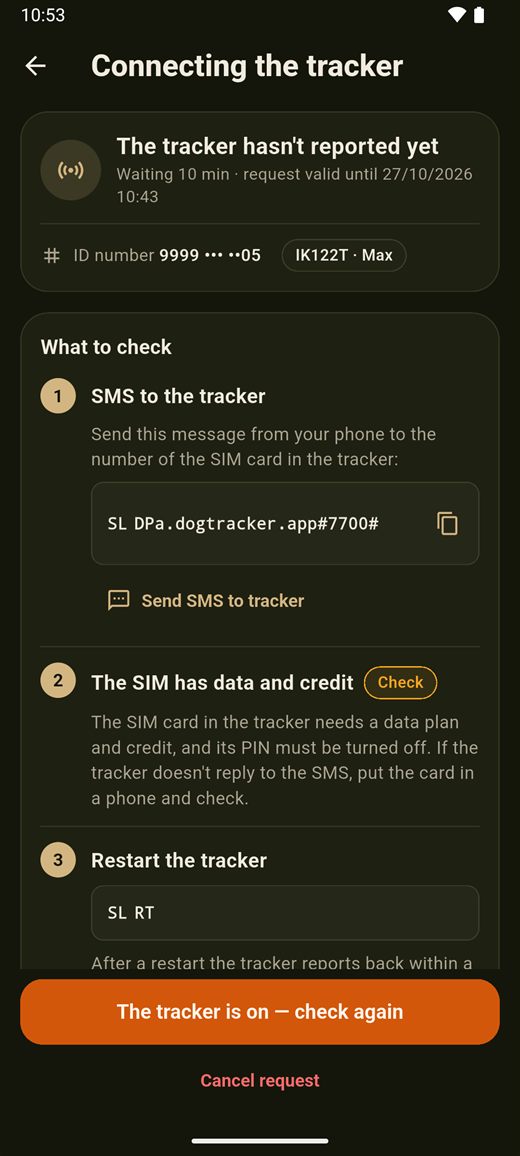
If the request expires. A request stays valid for 24 hours. If the tracker has not reported by then, the request stays for another 7 days under "Expired requests": "Try again" reopens pairing with the same details, and "Help" runs the same checks as above. The whole pairing procedure is also in the app as instructions — on the Trackers screen, the question-mark icon ("How to connect a tracker").
03
Switching from the original ICAR app or another app
For a tracker you already use with the manufacturer's app or another one — ICAR or Gooxota, IK122T, IK122T Pro, IK122M Pro or the older IK122 Pro. The tracker and the SIM card stay the same — there is nothing new to buy.
It is the same procedure as for a new tracker (section 02). In short:
- Open Trackers → Add tracker, enter the tracker ID number — the 11 digits marked ID on the tracker — and choose the model. Do not enter the longer 15-digit number or the SIM card number.
- No number in sight? Tap "Can't see the number on the
tracker?" and send the tracker an SMS with the text
SL CX. Within a minute it replies with a message in which the first 11 digits after "SL CX:" are exactly that number — paste the whole message and the app pulls the number out for you. - Send the prepared SMS to the number of the SIM card in the
tracker. The app writes it for you; it looks like this:
SL DPa.dogtracker.app#7700#. Do not change a single character. - Wait for the tracker's reply. Within a minute it answers with
SL DP:a.dogtracker.app,7700— its confirmation that it has taken our server's address. - Restart the tracker. The button in the app sends it the SMS
SL RT, and the tracker replies "The terminal will restart after 1 minute!". By hand works too: hold the button on the tracker for 5 seconds to switch it off, then again to switch it on. - Wait a minute or two after the restart. The tracker reports to our server and attaches itself to your account. The request in the app stays valid for 24 hours; the app shows you the exact time.
From that moment on, your previous app no longer receives positions — the tracker sends its data to one server only, and now that server is ours. History from your previous app is not carried over to DogTracker.
Going back is the same procedure, just with the address
of the server the tracker is going back to. For the original ICAR app, send the tracker the
SMS SL DPa.icargps.net#7700#; for another app, that app's support gives you the
exact message. Then release it in DogTracker: Trackers → the tracker → "Release tracker".
You can note down the server the tracker reports to now before you switch — it is in the
reply to the SMS SL CX.
Everything in one place, with fixes for when something goes wrong: switching from the ICAR app.
04
Reading the map
The map opens first. It is satellite imagery, so you see the actual woods, clearings and tracks — not just lines. If a plain street map or the terrain view suits you better somewhere, switch the base map in Layers; the app remembers your choice.
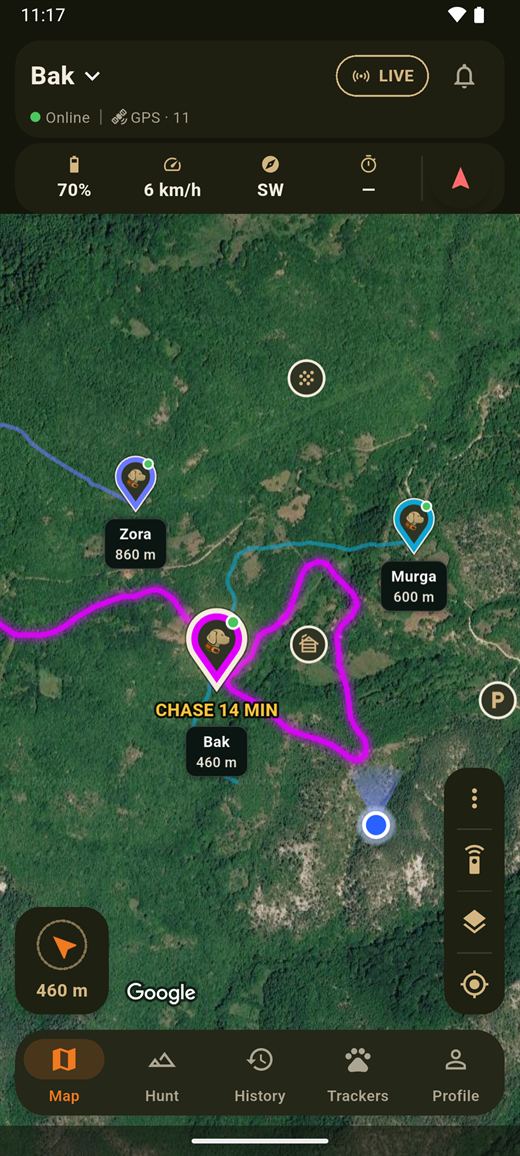
The buttons on the right edge sit in one bar. From the top:
- ⋮ (More) — My trail and place markers (sections 13 and 14).
- Commands — the remote-control button, for commands to the selected dog (section 16).
- Layers — the base map, and which dogs to show: all of them, only yours or only the selected one.
- The crosshair ("Recenter") — fits the dogs back onto the screen.
An orange dot on ⋮ means My trail is recording or you have hidden your markers; an orange Layers button means not every dog is on the map. You change the button layout in Profile → Appearance (section 06).
Tap a dog (or pick it at the top, in the header) and you get what the tracker is reporting:
- Speed — tells you at a glance whether the dog is working or standing still.
- Heading — which way it is going. Plus an arrow and the distance from you to the dog, so you know where to move.
- Tracker battery.
- Satellite count — "GPS · 14" means the tracker has 14 satellites right now. Few satellites means a weaker fix; in thick cover or under a rock face that is normal.
- Status and how old the reading is — "Online", "Online · location 9 min ago" and so on (section 05). Check this one first.
The dog on the map sits at the last position the tracker sent, not where it is this second. At rest the tracker reports less often, so the position can be a few minutes old. That is exactly why the age of the reading sits next to every dog.
The trail behind the dog. Each of your dogs — and every dog in a hunt you are in — leaves a trail of the last three hours on the map, even with LIVE off: you see where it came from. You set the trail length in Profile → Appearance (section 06).
Where the tracker went a while without reporting a position and the dog moved in the meantime, the trail is not a solid line but a thin grey dotted line: the dog got from one end to the other, but we don't know which way. The same goes for History and Hunt replay, and playback skips that part.
05
Tracker status
Next to every dog — in Trackers, in the map header, in History and in a hunt — you see what state its tracker is in.
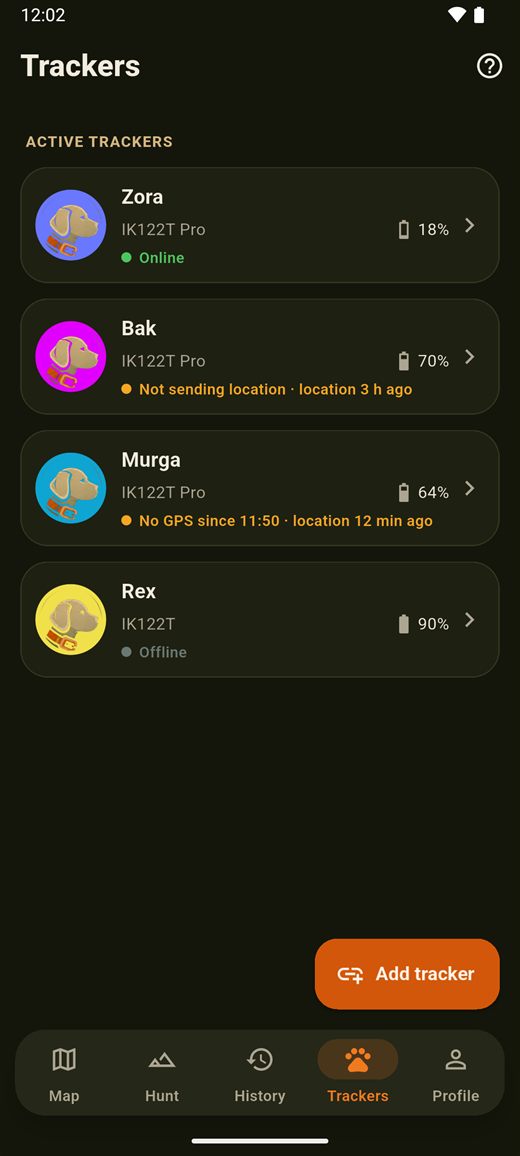
- "Online" — the tracker is connected, or has reported in the last 15 minutes. When the last location is more than two minutes old, it says so too: "Online · location 9 min ago". At rest the tracker reports less often, so that is normal.
- "Offline" — the tracker has not reported for more than 15 minutes: it is switched off, flat or out of coverage. An IK122T Pro or IK122M Pro switched off with its button shows "Offline" straight away.
- "Not sending location" (orange) — the tracker connects to the server but sends no location. Most often the SIM card has no mobile data: check the data plan with your operator. The label disappears as soon as the first location arrives.
- "No GPS since 09:41" (orange) — the tracker is reporting, but cannot see the satellites: cover, dense forest or being indoors. The location on the map is the last one with GPS. The label disappears when the signal comes back.
In those two orange states the dog is faded on the map, and the tracker detail screen shows a card explaining what is going on. The detail screen also has "Last location" with its coordinates, next to "Open in Maps" and "Share location".
06
How the map and the dogs look
How the dogs and the buttons look on the map is up to you, in Profile → Appearance. The choice applies to that phone.
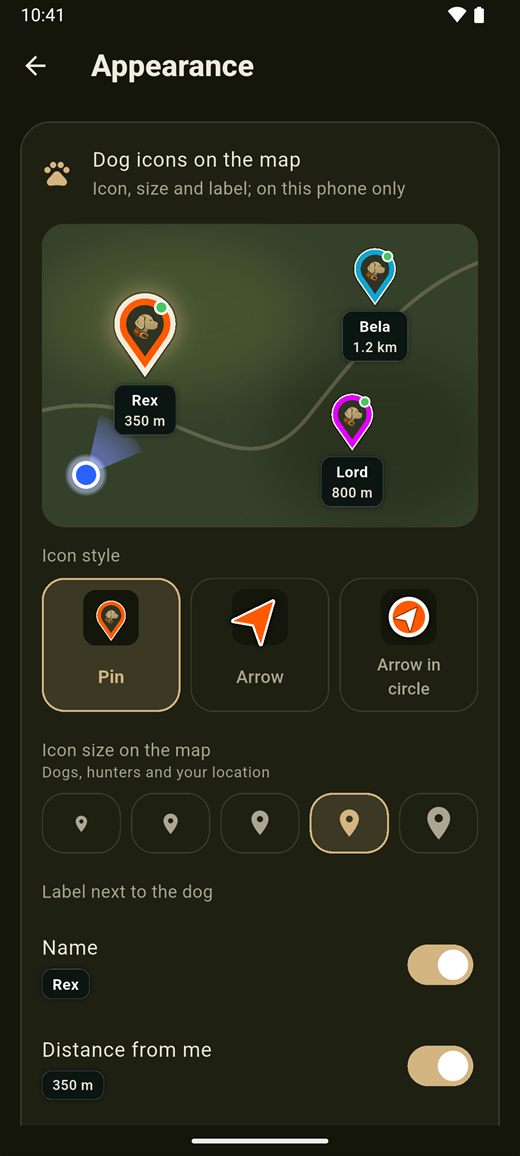
- "Dog icons on the map" — the dog's icon: "Pin" (the default), "Arrow" or "Arrow in circle". The arrow shows where the dog is heading, and while it stands still, the way it last went. "Icon size on the map" is here too.
- "Label next to the dog" — next to the icon you can show the name, the distance from you, how long ago the location arrived and the speed (speed only next to the selected dog). By default all of them are off.
- "Dog trail without LIVE" — the trail behind your dogs and the dogs in your hunt; "Trail length" goes from 15 minutes to 24 hours (3 hours by default).
- "Map buttons" — "Compact" (the default: My trail and markers under ⋮, the dog filter in Layers) or "All buttons": My trail, markers and the dog filter each get their own button, as in earlier versions. Turn on "Arrow to hide the map buttons" and an arrow below the buttons folds them away and back; when the app starts, the buttons are shown again.
You can also reach the dog settings from the map: Layers → "Dog icons…".
Dog colour. Every dog has its own colour — its icon and trail on the map use it, for the rest of your hunt too. Change it in Commands → Tracker settings → "Dog color", or on the tracker detail screen with the pencil ("Edit").
07
LIVE — when to use it
LIVE means one thing: the tracker reports every 5 seconds. The dot moves while you watch it.
Turn it on when the dog is working, when you are trying to catch up to it, when you need to know which side it went round. Leave it off on the walk in, while you are sitting at a stand, and while the dog is lying next to you. Five-second updates buy you nothing there and cost you battery.
LIVE switches itself off:
- after 30 minutes, and
- sooner than that if the tracker goes 15 minutes without reporting — it has dropped into a dead spot or shut down.
That shut-off is not a fault, it is battery protection — otherwise the tracker would sit at 5-second updates all day and go flat halfway through. Still need it? Turn it back on, one tap.
A minute before it runs out, while you are on the map, the app asks "LIVE is about to stop": "Continue" extends it, and if you choose nothing, LIVE stops.
If you want LIVE to keep running until you stop it, turn off "Stop LIVE automatically" in Profile → Settings. There is no 30-minute limit then, but the tracker battery drains faster. If the tracker goes 15 minutes without reporting, LIVE still stops.
08
Barking and chase
The IK122T Pro and the IK122M Pro can also tell you when the dog is barking. The regular IK122T and the older IK122 Pro cannot.
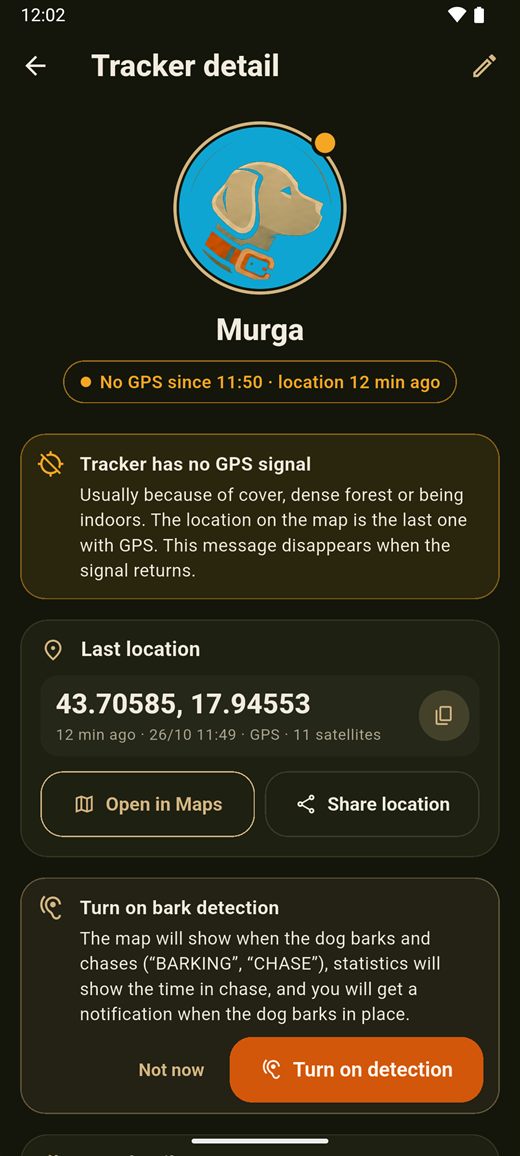
- Turn on bark detection. On the map, open Commands and under Tracker settings switch on "Bark detection". While it is off, the tracker does not report barking. If the app does not know whether it is on, the tracker detail screen offers "Turn on bark detection" — one tap on "Turn on detection" does it.
- Watch the map. When the tracker picks up barking, "BARKING" appears above the dog. When the dog keeps barking in the same place, it reads "BARKING IN PLACE", in orange. When it barks while moving away — chasing — it reads "CHASE" with the minutes, for example "CHASE 12 MIN". Everyone in the hunt sees these too.
- Set up the alert. In Profile → Settings → Notifications, under "Barking in place", choose after how many minutes of barking in one place you get a notification with the dog's name. Only the dog's owner gets it.
What does not count. Barking by the car, within half an hour of the dog getting out of it, and barking at home are not "barking in place": they send no alert and do not go into the statistics. Nor is barking while the dog rides in the car a chase. Barking also feeds the time in chase figure in the statistics — see section 12.
09
Hunting with a group
When there are five of you and everyone has a dog out, there is no sense in each man watching only his own.
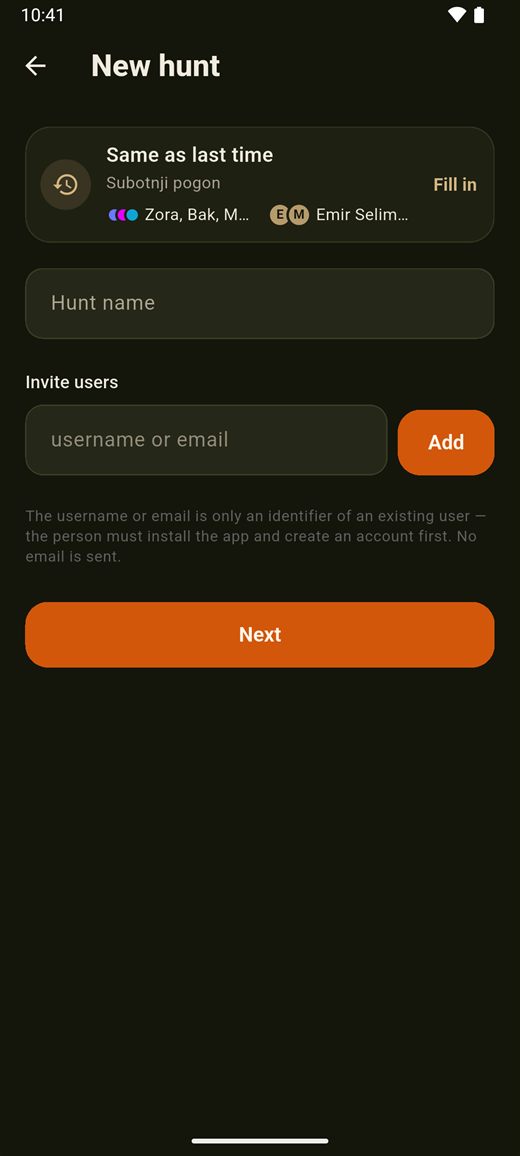
- Open Hunt → New hunt, give it a name and add your dogs.
- Invite the others by username or the email address they registered with — type it out in full. Without a DogTracker account there is nowhere for the invitation to land.
- Once they accept, everyone sees every dog in the hunt on one map. Theirs on yours, yours on theirs.
"Same as last time". If you have run a hunt before, the New hunt screen shows a "Same as last time" card with the dogs and hunters from your last hunt. "Fill in" adds them in one tap, and "Undo" puts things back as they were.
When the dogs have not reported yet. If your dogs are not on the map yet when the hunt starts, the "Dogs" tab shows a "Your dogs have not reported yet" card. Turn the trackers on: the dogs appear on the map by themselves as soon as they report, and there is no need to create the hunt again. If a tracker is still being linked, create the hunt straight away — once the tracker is linked, the app asks whether to add the dog to the hunt. If you are in a hunt and your dog with a tracker is not, the "Your dog is not in the hunt" card has an "Add my dog" button.
Your own position is never shared automatically. The "Share my location" switch stays off until you turn it on — when you create a hunt, when you accept an invitation, or later in the "Hunters" tab. Turn it off whenever you like. If you forget, it turns itself off when none of the dogs in the hunt has reported for more than 30 minutes, or 12 hours after you turned it on. The "Hunters" tab then says why, and the same switch turns it back on. The dogs are always visible; the hunters only if they choose to be.
A hunt also has a Statistics tab: for every dog in the hunt, how far it ran and how long it was on the move, live while the hunt is on. Every member can see it (section 12).
The hunt is ended by whoever created it, with "End hunt" — for everyone. If none of the dogs in the hunt has reported for more than 30 minutes, they get an "End the hunt?" notification — once per hunt, and at night (10 pm to 6 am) only in the morning. Tapping it opens the hunt with a choice of "Not yet" or "End hunt". An ended hunt opens on the "Replay" tab (section 10). You are only ever in one hunt at a time: when you create a new one, the hunt you are running ends, and you leave one that someone else is running.
10
Hunt replay
An ended hunt opens on the "Replay" tab: the tracks of every dog in the hunt on one map, played back like a recording — from entering the hunting ground to leaving it.
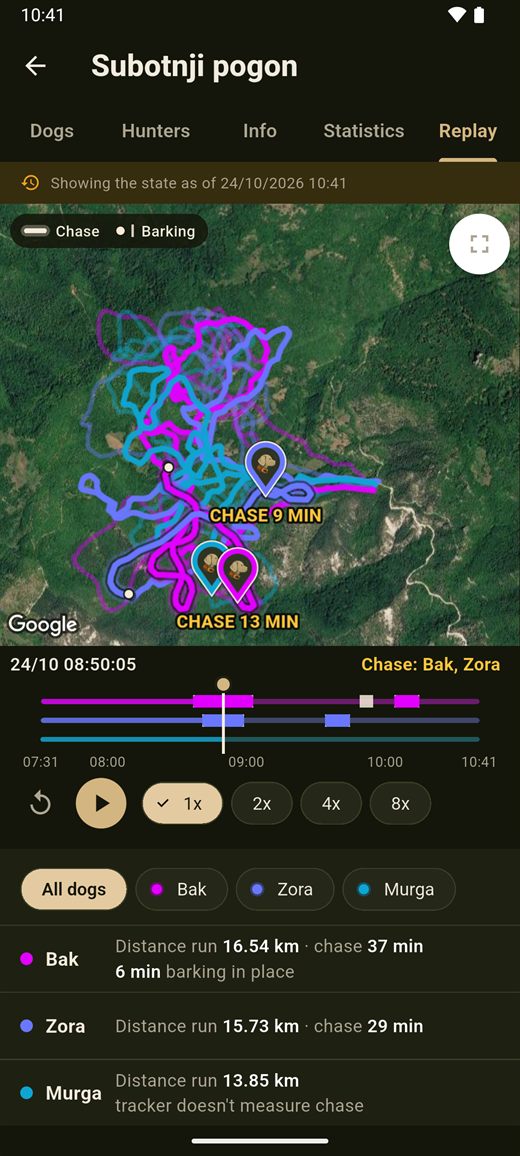
- Play it or drag the slider: the dogs move along their tracks, and the bar under the map shows when each dog was chasing and barking. Car rides are grey.
- Pick "All dogs" or a single dog. Next to each dog you see how far it ran and how long it chased — or that its tracker does not measure chase.
- While it plays, it also shows who is chasing at that moment. You can open the map full screen.
Everyone who was in the hunt can see the replay. A dog's track disappears once its owner releases the tracker, and once the positions are deleted (section 11) — the numbers in the Statistics tab stay.
11
Movement history
The History tab: pick a dog and a day and see where it went. The track can be replayed like a recording, start to finish. In the calendar, a green dot means the day has dog movement, and a white one that it has your own trail.
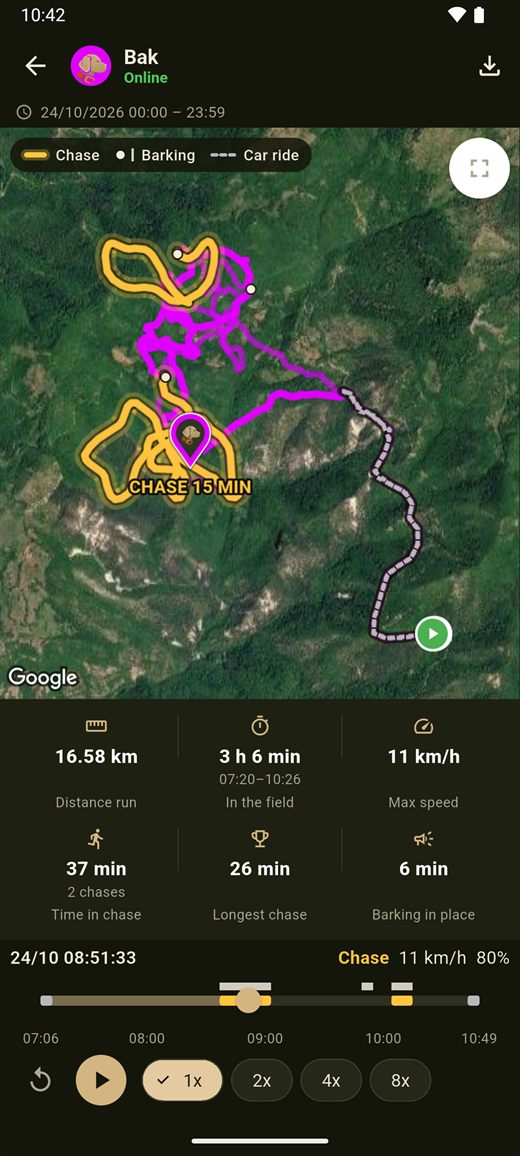
Day overview. For a single day, the slider bar under the map shows the dog's whole day: car rides (grey), chases and barking. Below it are "Distance run", "In the field" — from the dog's first to its last step in the field, car rides left out — and "Max speed", plus time in chase and barking in place for an IK122T Pro or IK122M Pro with bark detection.
A grey dashed line is a car ride; a thin grey dotted line is a stretch with no data (section 04).
It earns its keep in the evening, once you sit down: where the dog picked up the scent, where it circled, which way it came out, where you lost sight of it. Next time you know where to wait.
Export. Export the day you are looking at with the download-arrow button at the top right ("Export"): GPX is for tracking and navigation apps, KML for viewing on a map, e.g. in Google Earth. Save the file to your phone or share it. Export works one day at a time.
Positions are kept for 60 days and deleted in monthly blocks, no later than 92 days after they were recorded — this is not a season archive. If a particular day matters to you, export it and save it to your phone.
12
Statistics
In the History tab, every dog has a button with a bar chart — Statistics. Pick the period: 7 days, 30 days, the season (1 August to the end of February), 12 months or all.
- Distance run — how far the dog covered, with a chart by day, week or month.
- Active days — days on which it ran more than 2 km; plus the average for such a day and the longest day.
- Time on the move — how long it was moving; resting does not count.
- Max speed — the fastest stretch in the period; car rides are left out.
- Time in chase — how long it was barking on the move, getting away from where it started barking, with the number of chases and the longest one; plus how long it barked in place. IK122T Pro and IK122M Pro with bark detection on only (section 08); for other trackers it reads "The tracker doesn't measure chase".
A single hunt has its own Statistics tab: every dog in the hunt, who ran the most and who was longest in chase. While the hunt is on, the numbers update live. Every member can see it.
Calculated from the tracker's positions. GPS noise while the dog is resting, car rides and signal gaps are not counted. A car ride is recognised even when the car crawls along a forest road — which is why a dog that runs beside the car on a road for minutes on end can be counted as a car ride. The daily totals stay even after the positions themselves are deleted.
13
My trail
Besides the dogs, the app can record your own trail — where you went. Your phone records it, not the tracker, so you need neither a hunt nor a dog for it.
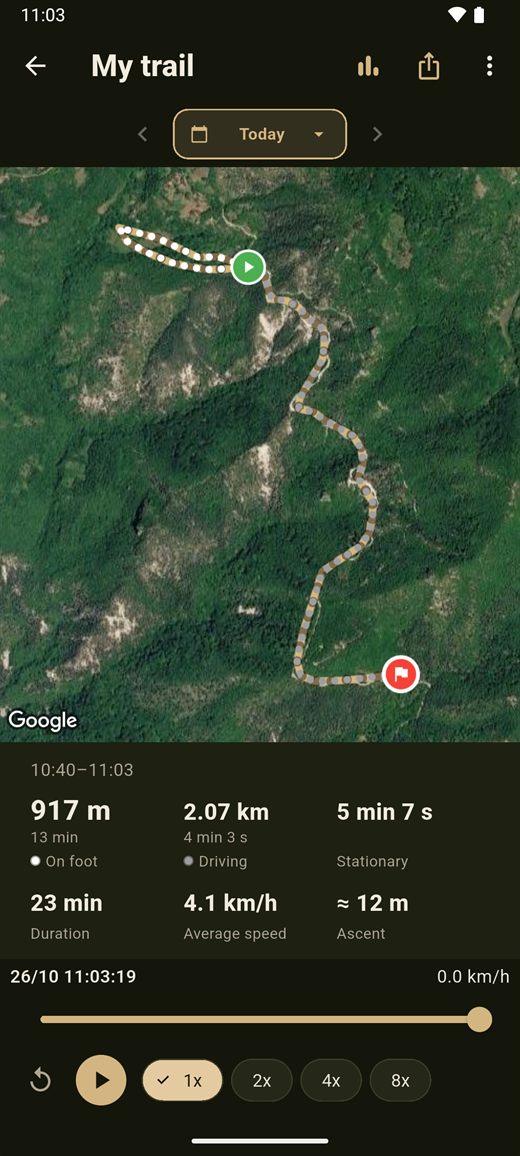
- Start recording. On the map tap ⋮ → "My trail" → "Start recording". With "All buttons", My trail has its own button, with a walking figure.
- It keeps recording when you close the app. A "Trail · …" bar at the top of the map shows the distance and the time, and your trail is a line of white dots. On Android a "Recording your trail" notification stays up meanwhile.
- Stop it the same way — "Stop recording". If you forget, it stops by itself after 12 hours.
My trail history. Under ⋮ → "My trail" → "My trail history", or on the "My trail" card in the History tab, you see it day by day: the trail on the map, which plays back like a recording, and the day split into "On foot", "Driving" and "Stationary". The arrows and the calendar take you to other days with a recording. Export a day to GPX or KML ("Export") or delete it ("Delete this day's trail").
Statistics. The chart button shows statistics like a dog's — on foot, days with a trail, time moving, ascent and average speed — for 7 days, 30 days, the season, 12 months or all. Driving is counted separately, so your on-foot kilometres do not grow while you drive. Ascent is approximate. Record during a hunt and you show up in the hunt's statistics too, in the "Me" row.
My trail stays on your phone. It is not sent to our server and hunt members do not see it; it leaves your phone only if you export and share it yourself, or if it is included in Android's backup to your Google account. Signing out stops the recording, but the trail stays; it is deleted when you delete the day or your account.
14
Place markers and "Guide me"
Stands, crossings, feeders, salt licks — the spots you want on your map.
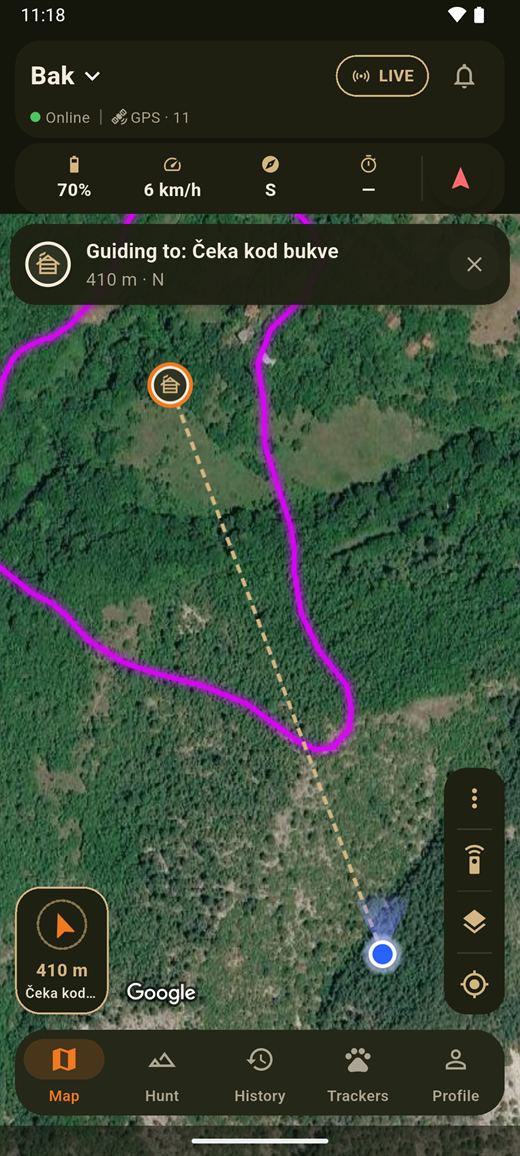
- New marker: press and hold on the map at that spot, or open ⋮ on the map → "Add where I stand". Give it a name and a type.
- Ten types: stand, hunting lodge, crossing, feeder, salt lick, tracks, water, parking, danger and other.
- Tap a marker to open its card: the coordinates (a tap copies them), "Guide me", "Open in Maps", "Share", "Edit" and "Move". They are all listed under ⋮ → "My markers".
"Guide me". On the marker card tap "Guide me": an arrow appears on the map, pointing the way, with the distance from you to the marker. When you get there it says "You've arrived" and guiding switches itself off; to stop earlier, use "Stop guiding". Guiding needs your phone's location, and it works while you have the map open.
Coordinates. The coordinates of a marker, of a dog's last location (on the tracker detail screen) and of your own position (tap the blue dot) are written the way you choose in Profile → Settings → "Coordinate format": decimal degrees (the default), degrees, minutes, seconds, or UTM. When you send a location as a message, it always goes as decimal degrees, with a Google Maps link.
Only you can see your markers. They are not shared on their own, not even with hunt members — until you send them yourself (section 15). You can add them with no signal too — they are saved on the phone and sent as soon as you are back online.
15
Sharing markers
You can send a marker to someone in your group. On the marker card tap "Share"; for several markers at once, tap "Select" in "My markers", tick them and tap "Share".
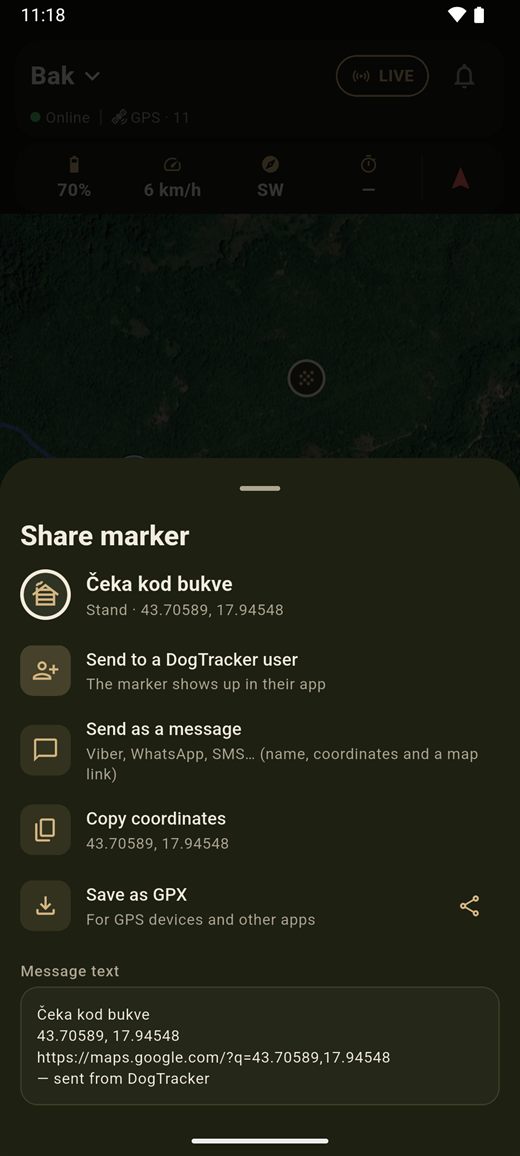
- "Send to a DogTracker user" — the marker shows up in their app. You pick the recipient from the members of the hunt that is on and the hunters you have hunted with; anyone else you type in by their exact username or email.
- "Send as a message" — Viber, WhatsApp, SMS…: the name, the coordinates and a map link.
- "Copy coordinates" — the coordinates in the format you chose; for several markers, each with its name, one per line.
- "Save as GPX" — for GPS devices and other apps.
Markers received. When someone sends you markers, you get a notification, and a "Markers received" card on the map with the sender's name. "Preview" shows them, "Save all" adds them to your markers, and "Decline" throws them away. Until you save them, they are not among your markers.
The recipient gets a copy of the markers: they can save or decline them, and your own markers stay yours only. You are not told either way — whether they save them or decline them.
16
Tracker commands
Commands open from the map — the remote-control button in the bar on the right edge. They apply to the dog selected in the header. Pick a command, then send it by tapping the box below. The commands come in two groups: "Training" (training sound and vibration) and "Locate" (sound and light).
- Training sound — a different tone from the find sound, for dogs trained to respond to it.
- Vibration — a short signal to the dog, for dogs trained to it; you choose the level. Only the IK122T Pro has it. If there is no vibration button in the app, your tracker does not have it — nothing is broken.
- Sound — the tracker makes a noise. When you know the dog is close but cannot see it, your ears will find it before the map does.
- Light — the lamp on the tracker comes on. After dark a dog coming out of cover shows up as a moving light long before you hear it.
The IK122M Pro has all of these except vibration; the older IK122 Pro has only the sound.
A command does not go straight from your phone to the tracker. It travels through the server and the mobile network, so it can take a second or two. Sound, light and vibration also reach a tracker that is at rest. If the tracker is off the network the commands are greyed out: there is nobody to deliver them to until it reports again. When a command does not get through, the app tells you why. If the tracker has no connection at that moment — usually because of a weak signal — the message comes with a "Send again" button, and as soon as the tracker reports again, the message tells you. The command is never sent again by itself: that is your call.
Tracker settings — below the commands, on the same screen:
- Location upload interval — how often the tracker reports its position when LIVE is off. The default is 10 seconds. Reporting less often means longer battery but an older marker; more often, the other way round. LIVE overrides this temporarily (5 seconds) and restores it when it stops.
- Admin/SOS number — the phone number the tracker keeps as its own. You set it, and change it, from the app.
- Bark detection — IK122T Pro and IK122M Pro only. While it is on, the tracker reports barking (section 08).
- Power-off lock — while it is on, the tracker cannot be switched off with its button; it stays on until you turn the lock off in the app. If someone holds the button, you get an alert (section 17). Every tracker has it.
- Dog color — the colour of the dog's icon and trail on the map (section 06).
- Restart tracker — the tracker restarts and reports back within a minute or two.
17
Alerts and what they mean
The app tells you:
- Tracker battery is low. This is the one you really do not want to miss in the middle of a drive.
- The tracker went offline, or came back. "Went offline" usually just means the dog crossed into a patch with no coverage — wait for the message saying it is back. If you switch an IK122T Pro or IK122M Pro off with its button, the message says so: "… was switched off with the button at 18:40", with the time it went off. When you turn it back on, no "back online" message follows.
- The tracker is not sending its location. It connects, but no location comes through — most often a SIM card without mobile data (section 05).
- Barking in place. The dog has been barking in the same place for longer than you set — IK122T Pro and IK122M Pro with bark detection on only. Not by the car or at home (section 08).
- "Someone is holding the tracker button". The power-off lock is on and someone is trying to switch the tracker off with its button. The alert arrives a little later, and not at all if you turned the lock off in the meantime. If it was you, turn off the power-off lock (Commands → Tracker settings), then switch the tracker off.
- A hunt invitation from someone in your group. If a hunt you started is still running at 8 pm (Central European time), you also get a reminder to end it — once per hunt.
- Markers received — when someone sends you markers (section 15).
- "End the hunt?" — to whoever created the hunt, when none of the dogs in it has reported for more than 30 minutes (section 09).
Less noise. When the same thing happens to several of your dogs within two minutes — say, several trackers stop reporting — you get one notification with all the dogs' names. The bell still keeps each one separately. The message that a tracker is back online only comes if at least 10 minutes have passed since the message that it went offline, and "switched off with the button" does not come if you switch the tracker off right after a car ride.
In Profile → Settings → Notifications you can switch each of these off separately, except received markers; "not sending location" goes with "Tracker offline / back online". If you have blocked notifications for the whole app in your phone's settings, the app will warn you about it — with them off you will not even hear that the battery is running out.
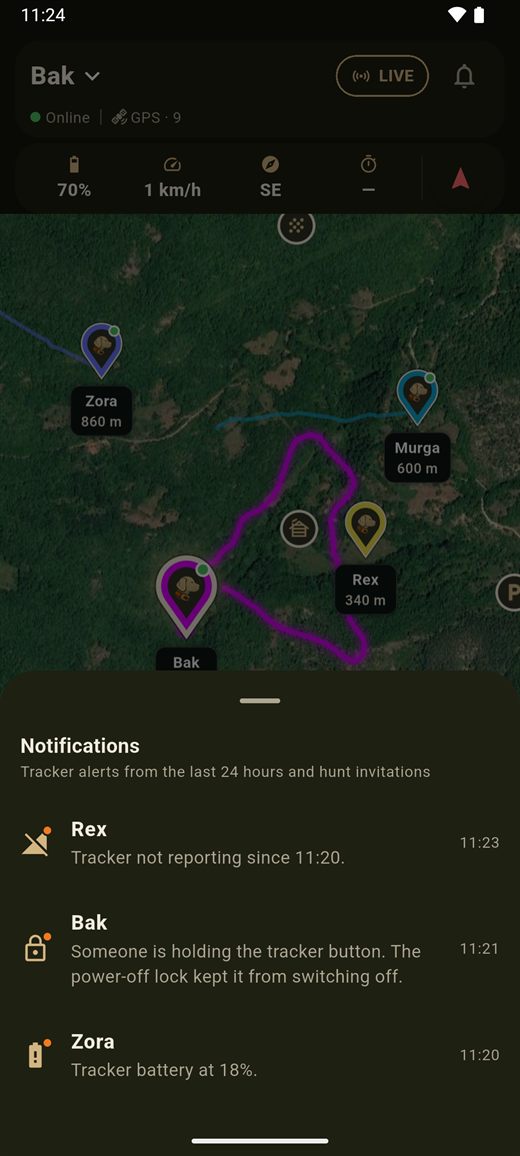
The bell. The bell at the top of the map keeps the tracker alerts from the last 24 hours — battery, the tracker not reporting or switched off, not sending its location, barking in place, someone holding the button — and your hunt invitations. An orange dot on the bell means there is something you have not looked at yet. Alert types you switched off in Settings do not show up there either.
18
Battery and saving it
We are not going to give you a number of hours, because it honestly depends. On the tracker model, on how often it reports, on how much LIVE you used, and most of all on signal: a tracker fighting weak coverage all day drains noticeably faster than one sitting on full bars.
What actually helps:
- Leave the resting interval long (every 30 seconds, say). For the walk in, that is more than enough.
- Turn LIVE on when the action starts, not when you leave the house.
- Leave "Stop LIVE automatically" on, unless you really need LIVE for longer.
- Charge the tracker the night before you go, not two days earlier.
- Keep a charger in the car. It has saved many an afternoon.
19
When something goes wrong
I sent the SMS and the tracker is not reporting
First check whether the tracker replied to the message. If you got
a reply starting with "SL DP:", it has taken the address — all that is left is to
restart it: from the app (the button in the request sends it the SMS
SL RT) or by hand, with the button on the
tracker (hold it for 5 seconds to switch off, then again to switch on). Give it a
minute or two after the restart.
If there is no reply, send it the SMS SL CX.
If it answers that one, it is on the network: the reply shows its ID number (the
first 11 digits after "SL CX:") and the server it currently reports to — compare the
number with the one in your request, and if the server is not
a.dogtracker.app,7700, send the prepared
message again. If it stays silent on that too, the card is the problem: is the PIN disabled
(the tracker has no keypad to enter one), does it have mobile data,
not just calls and SMS, and does it have credit. All three take a
minute to check by putting the card back in a phone. Also make sure the message went
to that card's number and not some other one.
Check the ID number in the request too: if the number you copied has 15 digits, that is the other, factory number on the label — the ID number is the 11 digits marked ID, and no part of the longer number is it. Only at the very end, when everything else checks out: some carriers' cards need the APN set by hand. Write to us with the carrier's name and we will sort it out together.
The app cannot open my SMS app, or the message will not send
Copy the message text out of the app and send it by hand from your own SMS app to the SIM number in the tracker. Do not change the text — not one character. If your carrier rejects it, check that the card you are sending from has credit.
The app will not accept the tracker number I typed in
That field wants the 11-digit tracker ID number printed on the tracker itself — not the
SIM number. The SIM number goes in its own separate field, and it is optional. If the
app tells you the number has 15 digits, you have copied the other, factory number
from the label: the ID number is the one marked ID, and if you cannot see it, send
the tracker the SMS SL CX — the first 11
digits after "SL CX:" in the reply are that number.
The app says a request already exists
You already have a request for that tracker and it is still running — it stays valid for 24 hours from the moment you made it. You do not make a new one: the app takes you back to the SMS step, and the same request also sits in the "Pending requests" row on the Trackers screen. From there you can send the prepared message again and restart the tracker. If you would rather start over, cancel the request in that same row and add the tracker again. If the app says another user has the request, someone else is pairing that tracker to their account right now: wait for that request to expire, and if the tracker is yours, write to us.
The request row says "Not heard from yet"
Tap that row. The app takes you through the checks in order: the SMS to the tracker (you see when it was sent and can send it again), the SIM with data and credit, and the tracker restart ("Send SL RT"). Once the tracker is on and outdoors, tap "The tracker is on — check again". There is no need for a new request — the tracker links itself as soon as it reports.
The request expired
A request stays valid for 24 hours. An expired request stays on the Trackers screen for another 7 days, under "Expired requests": "Try again" reopens pairing with the same ID number, model, dog name and SIM number, and "Help" takes you through the checks. Before you try again, check the card — data, credit and PIN — since that is the most common reason.
I picked the wrong tracker model
You do not need to do anything: the server corrects the model on its own, from what the tracker sends. An IK122T Pro sends its altitude (and barking, when bark detection is on); the regular IK122T does not. A tracker whose ID number starts with 470 is always the older IK122 Pro, and it is entered that way as soon as you pair it. Once the model is corrected, the app shows that model's commands. The exception is the IK122T Pro and the IK122M Pro: they send the same data, so the server cannot tell them apart — if you picked the wrong one of the two, write to support@dogtracker.app and we will fix it.
The tracker says "Not sending location"
The tracker connects to the server but sends no location. Most often its SIM card has no mobile data: check the data plan with your operator. The label disappears on its own as soon as the first location arrives. Until then the map shows the last location the tracker sent.
The tracker says "No GPS since …"
The tracker is online and reporting, but cannot see the satellites — usually because of cover, dense forest or being indoors. The map shows the last location with GPS, along with how old it is. The label disappears on its own when the signal comes back. If the tracker is sitting in the house or the car, take it outside.
The dog is not showing up on the map
Check the tracker's status (section 05) and when the last reading came in. If it says several minutes ago, the tracker currently has no network or no clear view of the sky — in a gully, in thick cover or under a rock face that is normal and it sorts itself out as soon as the dog moves into the open. If it has never reported a position at all, take the tracker outside and give it time to find satellites. If Layers is not set to "All dogs", some dogs are hidden — the Layers button is orange then.
The position lags or jumps around
Weak satellite reception. The tracker reports the best fix it has, so in heavy cover the dot wanders. Once the dog is out in the open the track tidies itself up. The satellite count on the dog's detail screen tells you straight away how good the reception is.
The trail runs straight across a field, or part of it is grey dots
On that stretch the tracker reported no position. Most often it had no GPS signal (in the car, in a dog box, in thick forest) or no mobile network, or it was switched off. When more than a minute passes between two positions and they are more than 100 m apart, the app joins them with a thin grey dotted line, so you can see where data is missing. The dog did not take that straight line. A single position that "jumps" far away and straight back is not drawn.
LIVE turned itself off
That is how it is meant to work. It stops after 30 minutes, and sooner if the tracker goes 15 minutes without reporting. Turn it back on when you need it. If you want it to keep running until you stop it, turn off "Stop LIVE automatically" in Profile → Settings — the 15-minute rule still applies.
The command buttons are greyed out
The tracker is off the network, so there is nowhere for the command to go. As soon as it reports in, the buttons work again. Only the tracker's owner can send commands — people in your hunt can see the dog, but they cannot set off its light or sound.
I cannot find the My trail or markers button
Since version 2.0 they are under ⋮ (three dots) in the bar on the right edge of the map. If you want them as before, each on its own button, choose "All buttons" in Profile → Appearance → "Map buttons".
Someone cannot accept my hunt invitation
Nine times out of ten it is the username or the email address. The invitation goes to the account with exactly that username or address — if they registered with a different one, nothing will show up for them. The username is the safest bet: check it with them (it is shown in their Profile) and invite again.
I can see the other dogs but not the other hunters
That is by design. Everyone shares their own position themselves, with the "Share my location" switch — when creating or accepting a hunt, or later in the "Hunters" tab. While that switch is off, nothing is shared. Ask them to turn it on.
History does not go back as far as I want
Positions are kept for 60 days and deleted in monthly blocks, no later than 92 days after they were recorded — which is why a slightly older day can stay visible for a while. Once it has been deleted, that day can no longer be opened.
I forgot my password
Choose "Forgot your password?" on the sign-in screen. A six-digit code arrives by email, it is valid for 15 minutes, and you set a new password with it. If the code does not turn up, check your spam folder.
Support
Stuck?
If something does not behave the way this page says, write to us. Include the tracker number and what exactly happened — it gets sorted far quicker than through ten messages back and forth.